PlugThis AI Review: Build Chrome Extensions With AI in Minutes?



I’ve wanted to make small Chrome extensions for ages. Not a giant software platform, just useful little tools that do one job when I click a button. The part that usually stops me is everything around the idea: extension files, browser permissions, installation, testing, and figuring out what broke.
PlugThis AI takes a focused approach to that problem. Instead of asking me to build a website or a full web app, it lets me describe a Chrome extension in plain English, generates it, and helps me install it locally. I tried both a ready-made SEO tool and a custom extension of my own. One worked immediately. The other looked impressive but exposed an important limitation in real-world testing.
That mix makes this a more interesting review than a simple “AI built an app in minutes” story. PlugThis AI made it remarkably easy to get a Chrome extension running, but a running extension is not necessarily a finished extension.
Table of Contents
- What is PlugThis AI?
- Start with an existing extension, not a blank page
- Building my own YouTube comment extension
- How I installed and updated the extension
- The real test: could it analyze all the comments?
- Where PlugThis AI fits into a practical workflow
- My verdict on PlugThis AI
What is PlugThis AI?
PlugThis AI is an AI-powered builder dedicated to Chrome extensions. I can describe a browser-based task, review the proposed architecture, and have the tool generate an extension that I can test in Chrome. It also has a Discover area with extensions that I can download or clone as a starting point.
That narrow focus is the appeal. General AI coding tools can build all sorts of products, but a Chrome extension has its own structure and installation process. PlugThis AI puts the idea, build, preview, and local testing workflow in one place.
At the time of my review, its AppSumo license tiers started at $39 and went up to $499. The listing presented features such as code ownership, version history, GitHub sync, and Chrome Web Store readiness, with allowances varying by tier. The higher-end listing showed up to 500 generations per month, 25 seats, and 25 workspaces. I would check the current plan details before buying, especially if the number of extensions or generations matters to you.
It is also a young product. The listing indicated a February 2026 start, and the rating I saw was 4.9 out of 5 from 19 reviews. Those are encouraging early signals, not a long-term track record. One review described an extension that analyzes Amazon product reviews for pros, cons, and market gaps. That gave me the idea for my own test: could I do something similar with YouTube comments?
Start with an existing extension, not a blank page
Before building anything, I explored Discover. It groups extensions by use case, including social and productivity tools. Examples included an X keyword filter and a tool that turns an article into a three-bullet summary. For my test, I picked Page Audit, a simple SEO extension.
The useful distinction here is between downloading and cloning. If I only want to use an extension, I can download it. If I like its layout and basic function but want to add features, I can clone it and build on that foundation. For a first project, cloning could save me from having to specify every detail from scratch.
I downloaded Page Audit, loaded its unpacked folder into Chrome, and pinned it to the browser toolbar. On a page from my own site, it opened without a separate sign-in or an API key. It checked practical on-page details including the title and meta description, the H1, missing image alt text, links, and word count.
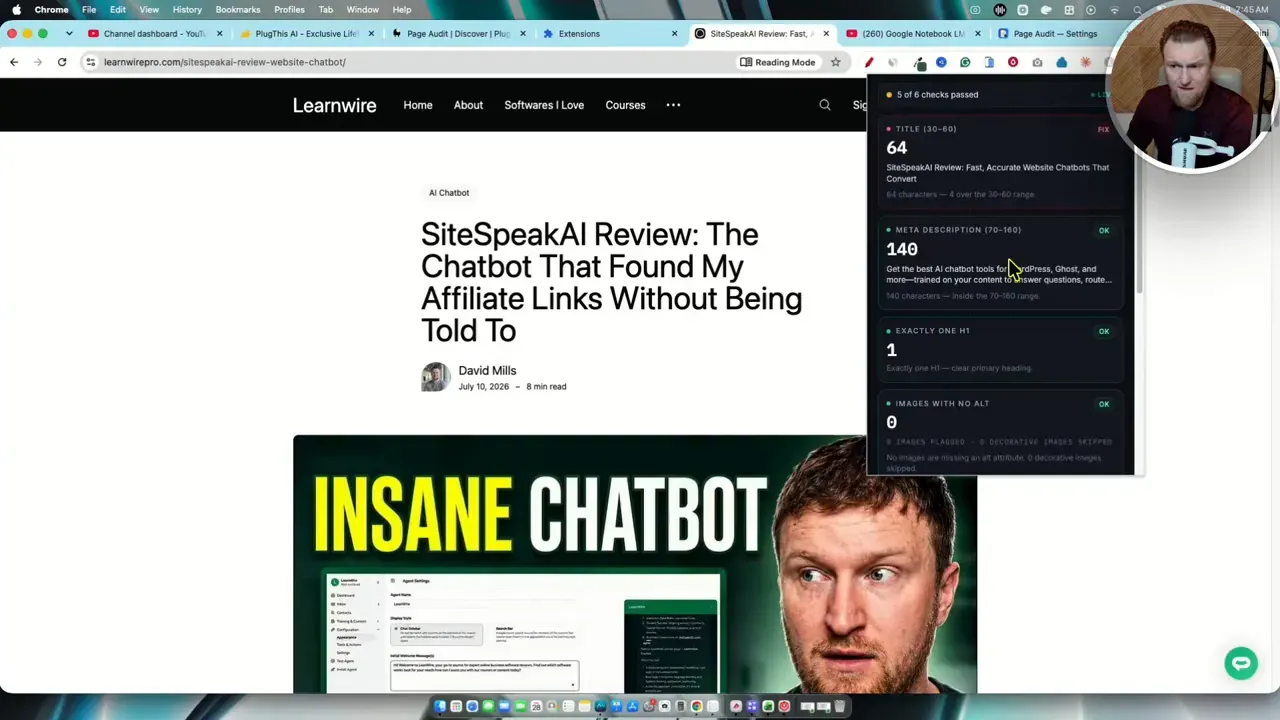
The results gave me a quick picture of the page. The audit flagged the title under its configured length rule while showing the meta description and single H1 as passing. It also reported zero images without alt text, a breakdown of 40 internal and seven external links, and a word count of roughly 1,700. I could copy the audit, copy it as Markdown, export a CSV, or run it again.
I would not treat a colored pass or fail badge as an absolute SEO rule. For example, the tool’s title-length setting is configurable, and a title that exceeds its default threshold does not automatically mean the page will perform poorly. Still, having those checks one click away is handy. For a deeper look at content optimization beyond basic page checks, I’ve also covered the workflow in my Squirrly SEO review.
Page Audit also showed what I might build next. I could use the existing extension as a base, then ask for a likely target-keyword estimate or a more detailed content check. Those are ideas for additions, not features I verified in the version I installed.
Building my own YouTube comment extension
For the custom build, I wanted an extension that would scan comments on a YouTube video and identify questions or problems that might inspire a product or a future video. I chose one of my videos with roughly 51,000 views and more than 100 comments as the test page. That gave the extension enough material to prove whether it could do more than analyze a single comment.
My prompt was deliberately short: create an extension that scans the comments on the current YouTube video and finds problems or questions that could become product ideas or video ideas. PlugThis AI offered an Ask mode for questions and a Build mode for creating the extension, along with Fast and Deep options. I used Build with Deep selected.
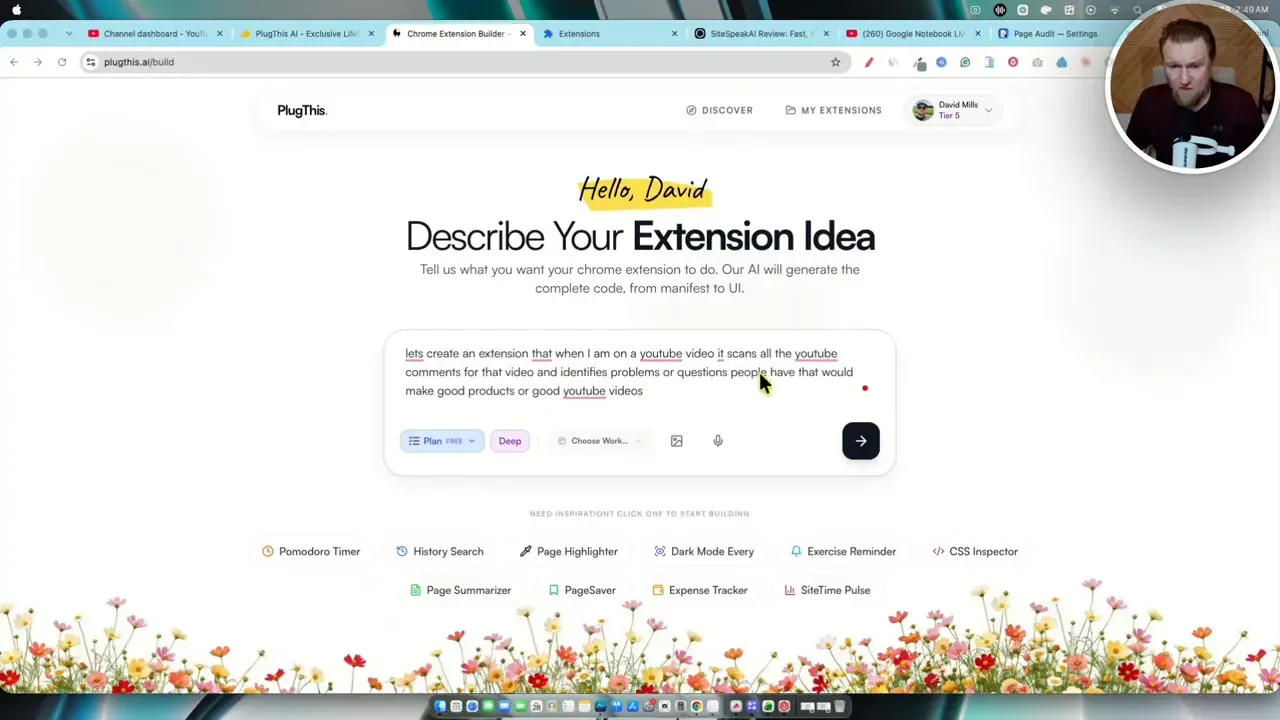
The tool then drafted an architecture instead of immediately handing me a download. I could review its proposed features and technical approach before accepting the build. That pause matters. If the plan misunderstands the job, fixing the plan is easier than testing an extension built around the wrong job.
The workspace kept the conversation on one side and the build materials on the other. I could see options for history, configuration, a tutorial, and testing or downloading. After I accepted the plan, PlugThis AI generated an extension it called Comment Miner, complete with a dark side-panel interface and an icon.
The build was not perfectly smooth. I hit errors and used the interface’s option to copy an error back to the AI for a fix. PlugThis AI also suggested follow-up features, such as sentiment filtering, a rescan button, a scan progress indicator, CSV export, and scan history. I liked being able to queue some of those ideas while it worked on the current task.
One pricing detail remained unclear to me: the build interface referred to a credit, while the plan table emphasized generations. I could not confidently tell from this test how those terms mapped to each other or whether a particular extension allowance renewed. If your workflow involves many iterations, that is worth clarifying before choosing a tier.
Did Comment Miner need an API key?
I asked whether the extension was ready to test and whether it needed an API key. The builder’s response said it was designed to run analysis on the device, using Chrome’s built-in Gemini Nano language model when available and a keyword-based fallback when it was not. That meant I did not need to enter an external AI API key for this build.
I treated that as the generated app’s stated design, not an independently verified privacy audit. If I were going to distribute an extension that processes other people’s comments, I would inspect its code, permissions, and data handling before making any privacy promise.
How I installed and updated the extension
Installing a locally built Chrome extension sounds more intimidating than it was here. PlugThis AI’s Test and Download area offered an install flow that placed the generated files in a folder I selected. I created a Comment Miner folder in Downloads and let the tool extract the files there.
I still had to complete the Chrome side of the process:
- Open Chrome’s Extensions management page.
- Enable Developer mode.
- Choose Load unpacked and select the extension folder.
- Turn on the extension and pin it if I want quick access from the toolbar.
Chrome then showed Comment Miner among my installed extensions. For anyone unfamiliar with this step, Google’s Chrome extension getting-started guide explains the local loading process and the basic files behind an extension.
The update workflow was similarly approachable, but it had one easy-to-miss step. After PlugThis AI changed the project, I clicked its Update extension button to write the new files into my local folder. Then I returned to Chrome’s Extensions page and clicked Reload on Comment Miner. I saw its version move from 1.0.3 to 1.0.7. Finally, I refreshed the YouTube page before testing again.
Those were updates to my locally installed copy. I would not assume the same button automatically updates an extension already distributed to other people through the Chrome Web Store. Publishing and maintaining a store listing is a separate process.
The real test: could it analyze all the comments?
Comment Miner looked good when I opened it on the YouTube page. It appeared in a side panel, had a clear scan button, and began reporting that it was finding comments and clustering themes. As a quick prototype, the interface was far more polished than I expected from such a short prompt.
Then I checked the output. Instead of analyzing the full discussion, it returned one cluster from one comment. I compared that result with the comments on the page and confirmed that it had picked up the first comment, not the rest. That single comment was not enough evidence to identify a recurring problem or a reliable product opportunity.
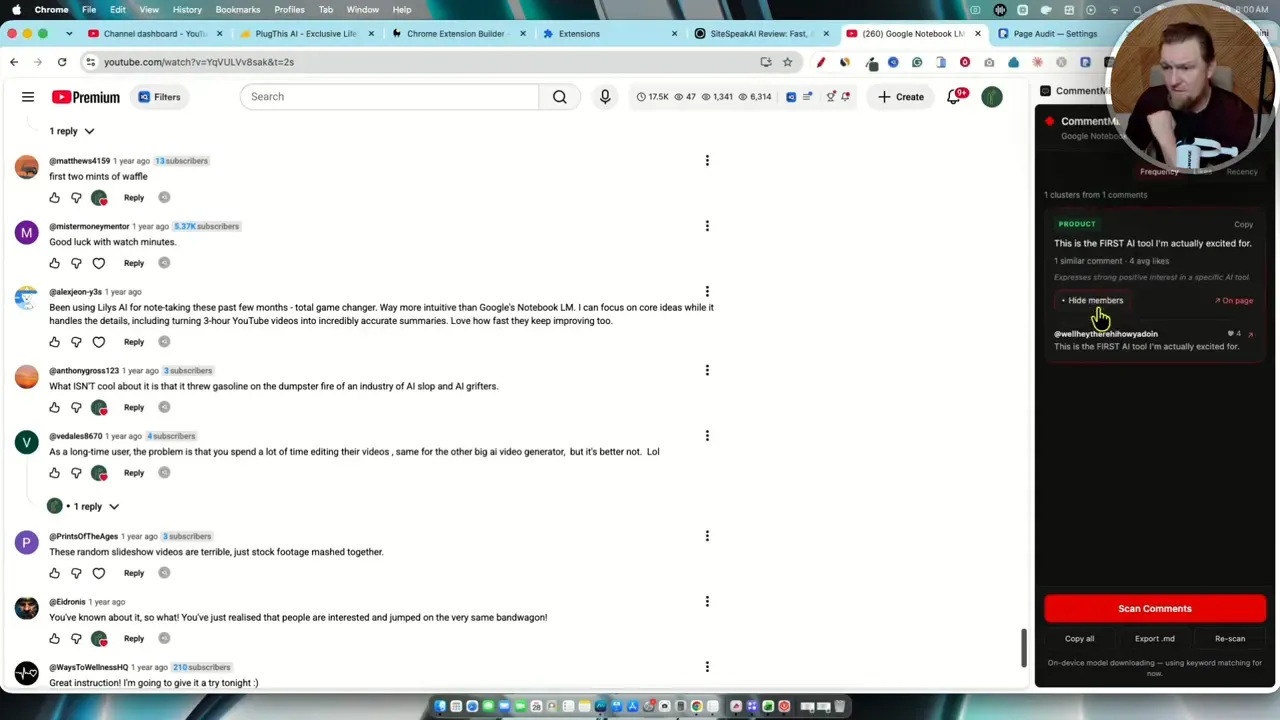
I went back to the builder and described the bug: the installed extension had scanned only the first comment even though the video had more than 100. I made sure the request was in Build mode and asked it to investigate. Along the way, I added the suggested rescan button and an infinite-scroll progress indicator.
After updating the local files, reloading the extension in Chrome, and refreshing the page, I ran another scan. The progress display appeared and the interface briefly indicated that it had found more than one comment. But the finished result still showed only the same single-comment cluster.
That issue was unresolved at the end of my test. PlugThis AI successfully built the extension’s structure, interface, installation flow, and iteration workflow. It did not successfully deliver the core promise of analyzing all the comments on that page. I would need more debugging before relying on Comment Miner for content research, much less offering it to anyone else.
That distinction is important for AI-built software. A good-looking side panel can make a prototype feel complete. I would judge it by the task it actually performs, especially when that task involves dynamic page content such as a long comment thread.
Where PlugThis AI fits into a practical workflow
I see the strongest immediate use case in small, specific browser tasks. Page Audit was a good example: click the extension, get a compact set of checks, and export the result if needed. A tool like that can save repeated manual steps without needing to become a large product.
Custom ideas have more potential, but they need more testing. My Comment Miner concept could be useful for finding questions to answer in future videos or gaps that deserve a closer look. It also sits naturally alongside other research tools. I’ve explored the broader product-research side in my Affiliate Corner review, while my Video Enhancing Automation review looks at a different part of the YouTube workflow.
I would approach an extension idea in stages:
- Pick one job. Describe the page where the extension should work and the exact result it should produce.
- Test a small example first. Confirm that it handles the basic case before adding exports, filters, or more AI features.
- Try a harder case. A page with many comments exposed the flaw in my first build.
- Check the result manually. A progress bar is not proof that every item was processed.
- Review the code and permissions before sharing. Local experimentation and distributing a browser extension carry different responsibilities.
Could I eventually sell an extension, publish it in the Chrome Web Store, share it privately, or give it away as a bonus? Potentially. PlugThis AI offers a route toward building one, and its listing references store readiness. But a useful idea still needs reliable behavior, appropriate permissions, and a proper publishing process. Google’s Chrome Web Store publishing documentation is a sensible next stop before attempting a release. I would not treat revenue as an automatic outcome of generating an extension.
My verdict on PlugThis AI
I came away impressed by how little friction PlugThis AI put between an idea and a locally installed Chrome extension. Discover makes it easy to inspect or clone existing tools. The builder turns a short request into a structured project. The install and update flows remove a lot of the file handling that once made extensions feel out of reach to me.
I also came away with a clear warning: the hard part may shift from creating the extension to proving that it works. Page Audit gave me useful results immediately. Comment Miner produced a polished interface in minutes, but its main scanning task still failed after another round of fixes. That makes it a promising builder for prototypes and personal workflow tools, not a guarantee of production-ready software from a single prompt.
My overall rating is 4.8 out of 5 for the building experience, with the comment-scanning bug as a real limitation of this particular test. I would start by cloning or building a narrow tool, test it thoroughly on the pages that matter, and only then consider publishing or selling it.
If that sounds like the kind of project you’ve been putting off, you can check the current PlugThis AI offer. The link may be an affiliate link, which means I may earn a commission if you purchase at no additional cost to you.